Playing games with a keyboard feels like eating soup with a fork. It works, but it feels wrong. I know you want a smooth gaming experience. Setting up your Citron Emulator is the first step. Citron supports automatic setup for almost every device. You get a seamless experience without the headache. Let me show you how to get started.
How do you set up controllers in Citron Emulator?
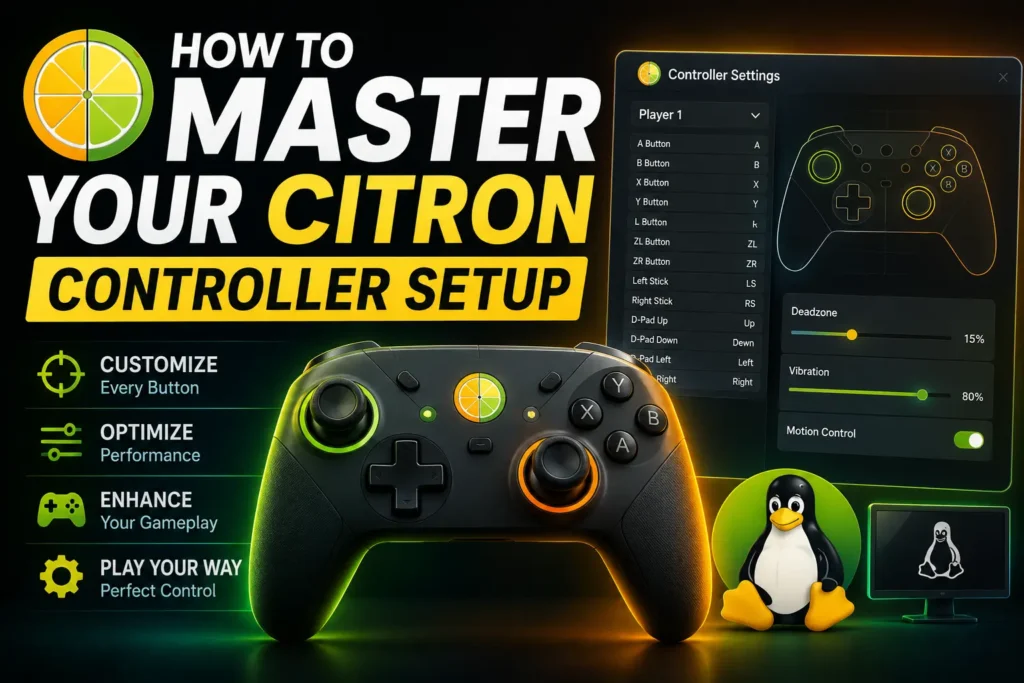
Setting up controllers in Citron Emulator requires opening the settings menu. You simply navigate to Emulation, then click Configure, and select Controls. This menu lets you manage your player slots, adjust your vibration settings, tweak motion controls, and manually map buttons for any connected gaming device.
Opening your Controller Configuration
Finding your settings is a breeze. Open the Citron app on your device. Click on Emulation at the top. Select Configure from the drop-down menu. Finally, click on Controls. This is your command center. You can manage everything from button mapping to player slots here.
Controller Compatibility
Citron Emulator plays nice with almost everything. You have total controller compatibility.
I use a PlayStation Controller most days. You can use a DualShock 4, a DualSense, or a DualSense Edge. Xbox fans are covered, too. Connect an Xbox controller, the Xbox One, Xbox Series X|S, Xbox 360, or Xbox Elite.
Nintendo fans can use a Switch Pro Controller or Joy-Cons. You can even connect Steam Deck controllers or generic XInput / DirectInput controllers.
Basic Setup Guide
Citron handles the hard work for you. Automatic setup works for most devices. Plug in your USB connection or use a Bluetooth connection. Citron detects your gamepad instantly.
If you prefer custom layouts, try manual button mapping. Click on the button you want to change. Press the new button on your gamepad. Save your profile when you finish.
Handheld mode vs docked mode in Citron Emulator
You have two ways to play. Docked mode gives you better graphics. It pushes the resolution up to 1080p. This is perfect for strong PCs.
Handheld mode caps the resolution at 720p. It runs smoother on older hardware. You can switch modes fast. Just press F10 or F12 on your keyboard.
Citron Emulator motion controls for DualSense
Motion controls make games feel alive. Citron supports gyro and accelerometer inputs. How to enable motion controls on DualShock 4 or DualSense? Go to the Controls menu. Check the box to enable motion.
Shake your gamepad to test it. You can adjust the controller sensitivity in the Citron Emulator right there. You can also fix axis inversion if your aim feels backwards.
Adjusting vibration settings in Citron Emulator
Rumble feedback pulls you into the game. Enable vibration in the Citron Emulator for DualSense or Xbox pads with ease. Open your Controls menu. Turn on the vibration settings.
You can set the strength from 0 to 100%. I keep mine around 70 percent. It feels like a gentle rumble instead of an earthquake.
Citron Emulator multiplayer setup with multiple controllers
Gaming with friends is a blast. You can play local multiplayer with up to 8 players. Just assign a gamepad to different player slots.
You can mix and match brands. Player one can use an Xbox Series X|S pad. Player two can use Joy-Cons. Everyone gets to play their way.
Using keyboard and mouse with Citron Emulator
Sometimes you lack a gamepad. Keyboard and mouse controls are your backup plan. Citron provides a default keyboard layout.
The ‘A’ button maps to ‘Z’. The ‘B’ button maps to ‘X’. You can change the button layout in Citron Emulator easily. Just click the input box and press your preferred key.
Fixing common controller issues
Technology fails sometimes. Let me help you troubleshoot.
Fixing the controller not showing up in Citron Emulator is easy. Unplug your USB connection and plug it back in. Restart the emulator completely.
Fixing motion controls not working in Citron Emulator takes two steps. Ensure your gamepad actually has a gyro sensor. Then, check that motion is ticked in the settings. If buttons act weird, reset your profile to default.
Get Back to Gaming
You now know how to connect an Xbox controller to Citron Emulator. You know how to set up Switch controllers in Citron Emulator. You even know how to set up the PlayStation controller in Citron Emulator. Your setup is complete. Jump into your favorite game and enjoy the ride.